
Benefits
- Real-time Updates: Any changes in Estizee automatically reflect in Google Calendar and vice versa.
- Team Coordination: Team members can view their assigned jobs in Google Calendar.
- Conflict Prevention: Avoid double-booking by maintaining a single source of truth for schedules.
Setup Process
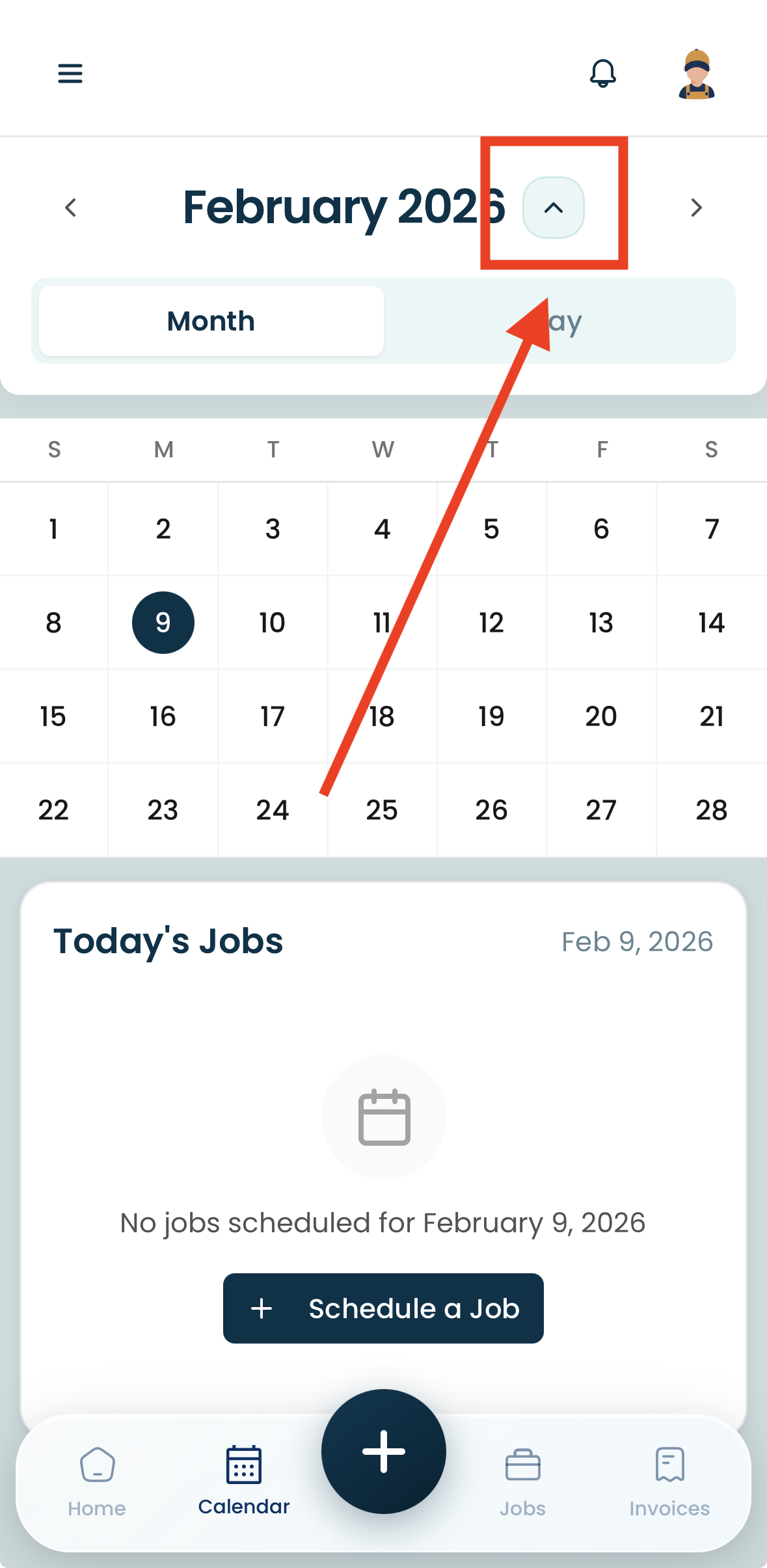
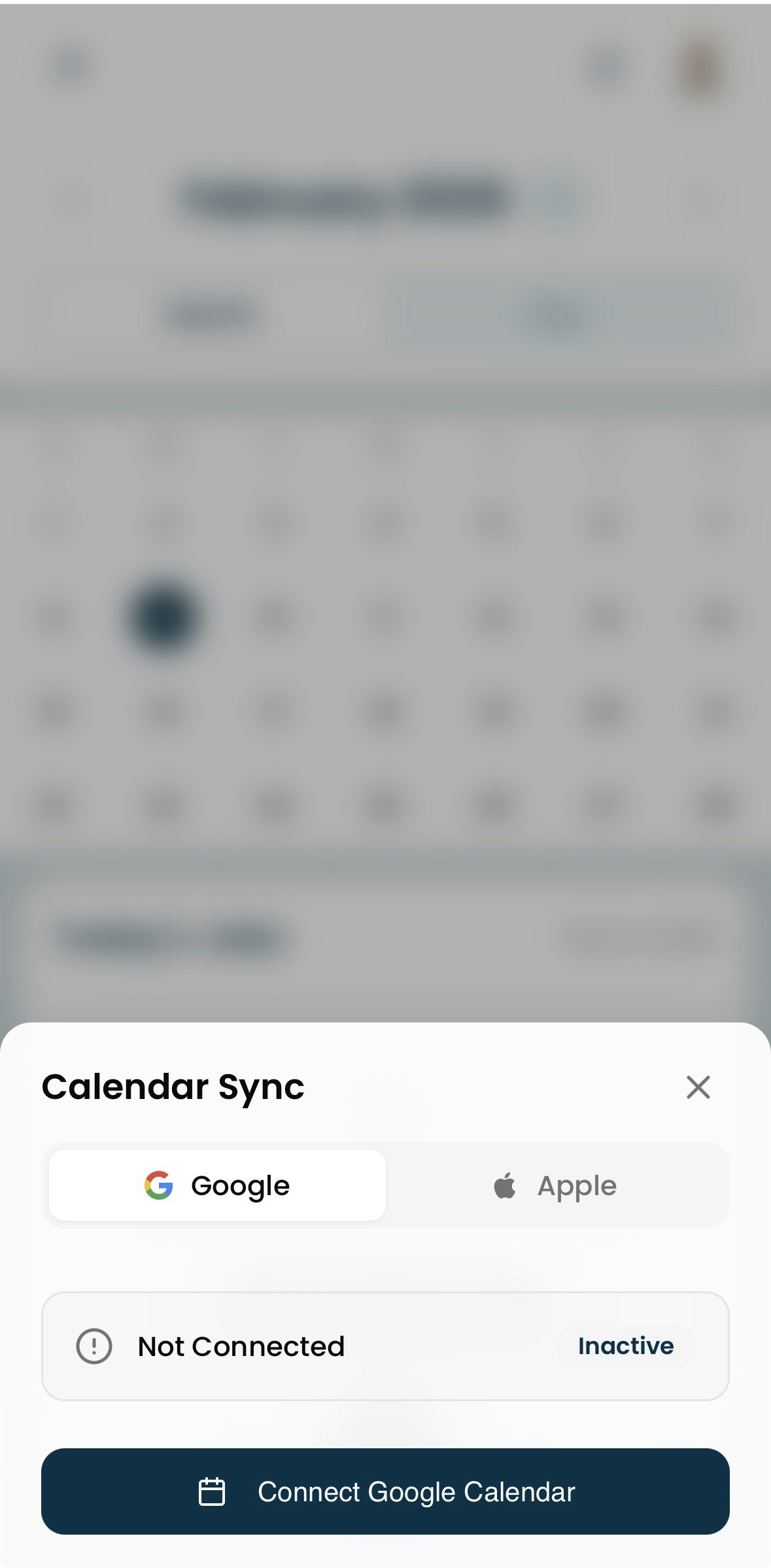
Sync Behavior
- Two-way Sync: Jobs created, updated, or deleted in Estizee automatically reflect in Google Calendar.
- Notifications: Changes in Google Calendar do not automatically update Estizee pricing or customer details; only scheduling details are synced.
- Multiple Calendars: You can sync multiple Google Calendars with Estizee for different teams or locations.
Best Practices
- Review calendar permissions periodically to ensure sync continues to function.
- Avoid manual changes in Google Calendar for Estizee jobs to prevent discrepancies.
- Use color-coding in Google Calendar to differentiate between teams or job types.
- Regularly monitor sync logs in Estizee for errors or conflicts.