
Overview
Creating a quote is the starting point of every job in Estizee.Quotes define pricing, service scope, and job conditions, and they power everything that follows—scheduling, invoicing, payments, and reminders. Estizee offers two quote types to match how you work:
- Turbo Quote – Fast, simplified estimates
- Advanced Quote – Detailed, rule-based pricing
Before You Start
Before creating your first quote, make sure you have:- Your base rates configured
- Your service types enabled (window cleaning, pressure washing, etc.)
- Your pricing rules and surcharges reviewed
- Your business info and branding set
Step 1: Start a New Quote
- Open Estizee
- Go to Home
- Click Create Smart Estimate
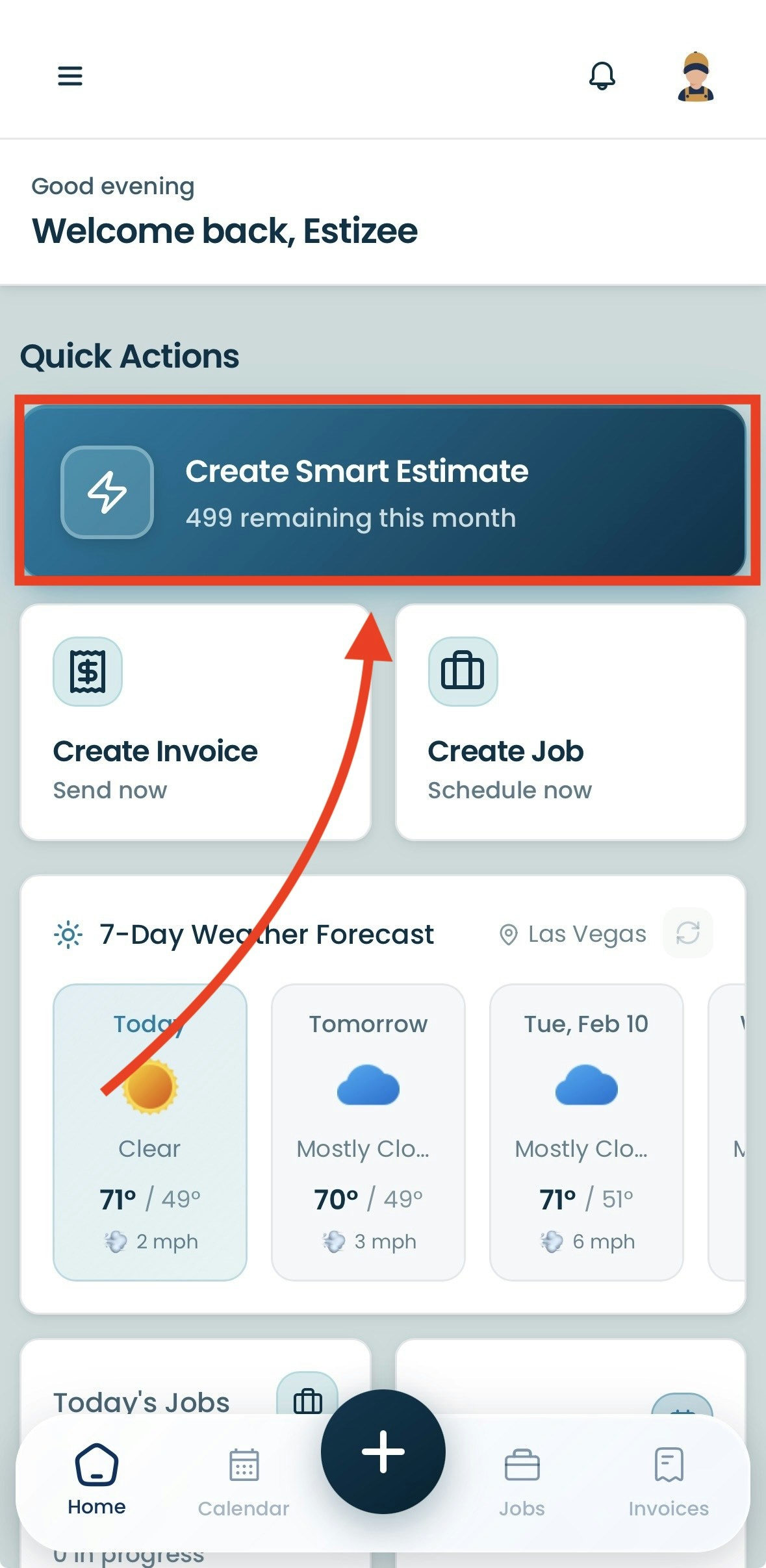
Before Choosing A Quote Type (Choose The Type of Service)
In this step, you would need to choose between which service you want for your quote. Eg. Window Cleaning, Solar Panel Cleaning, Pressure Washing, etc..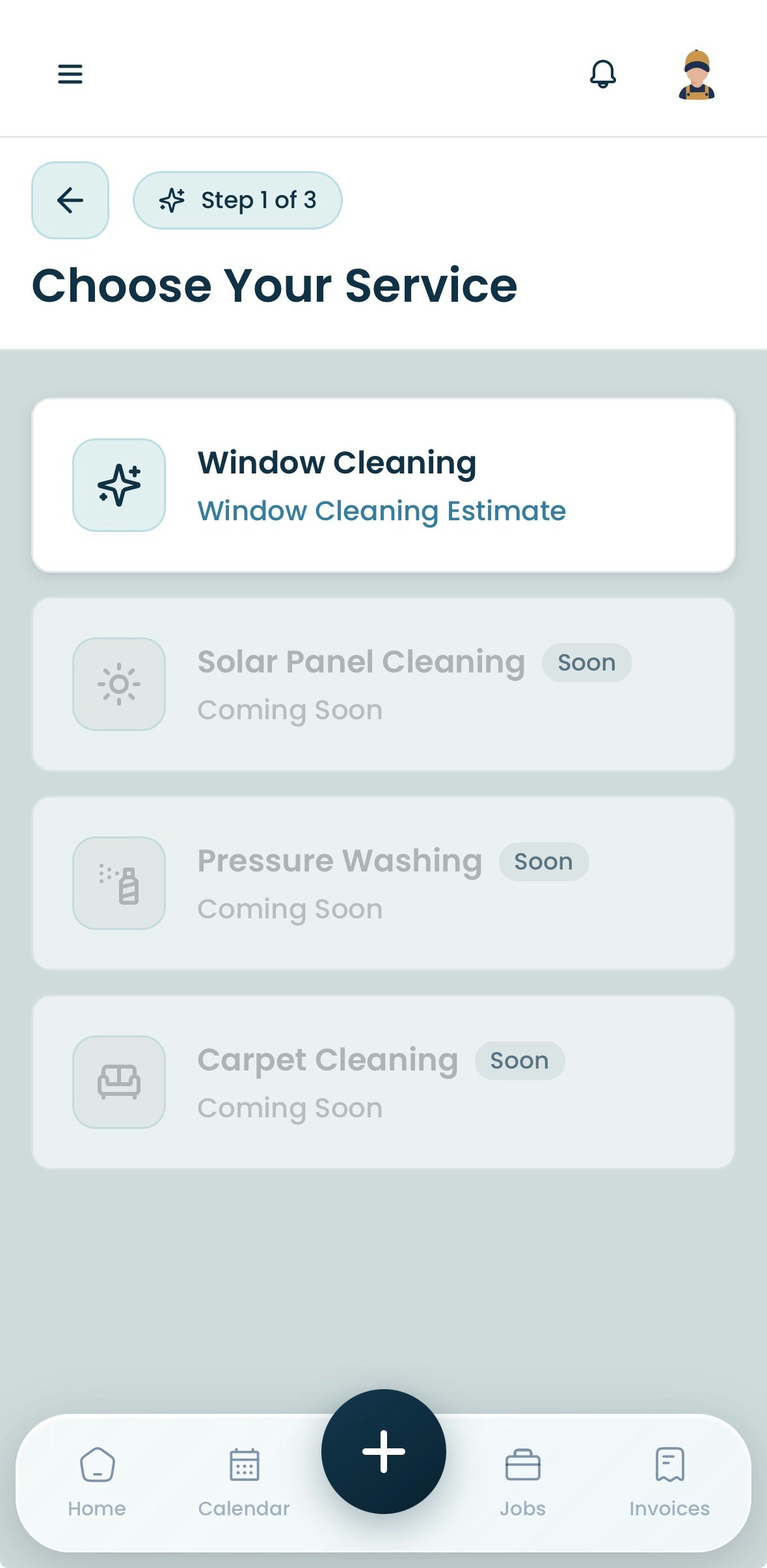
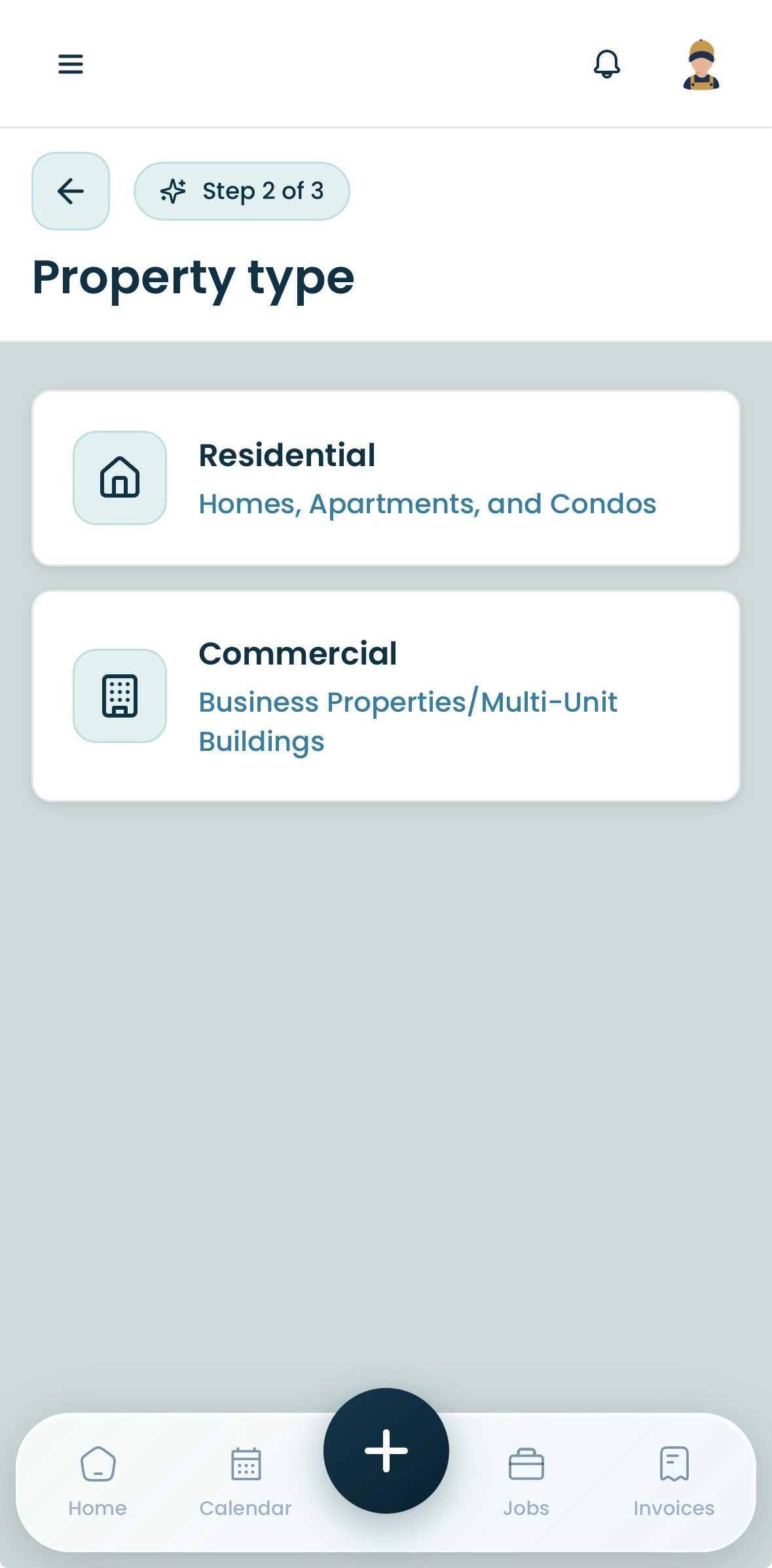
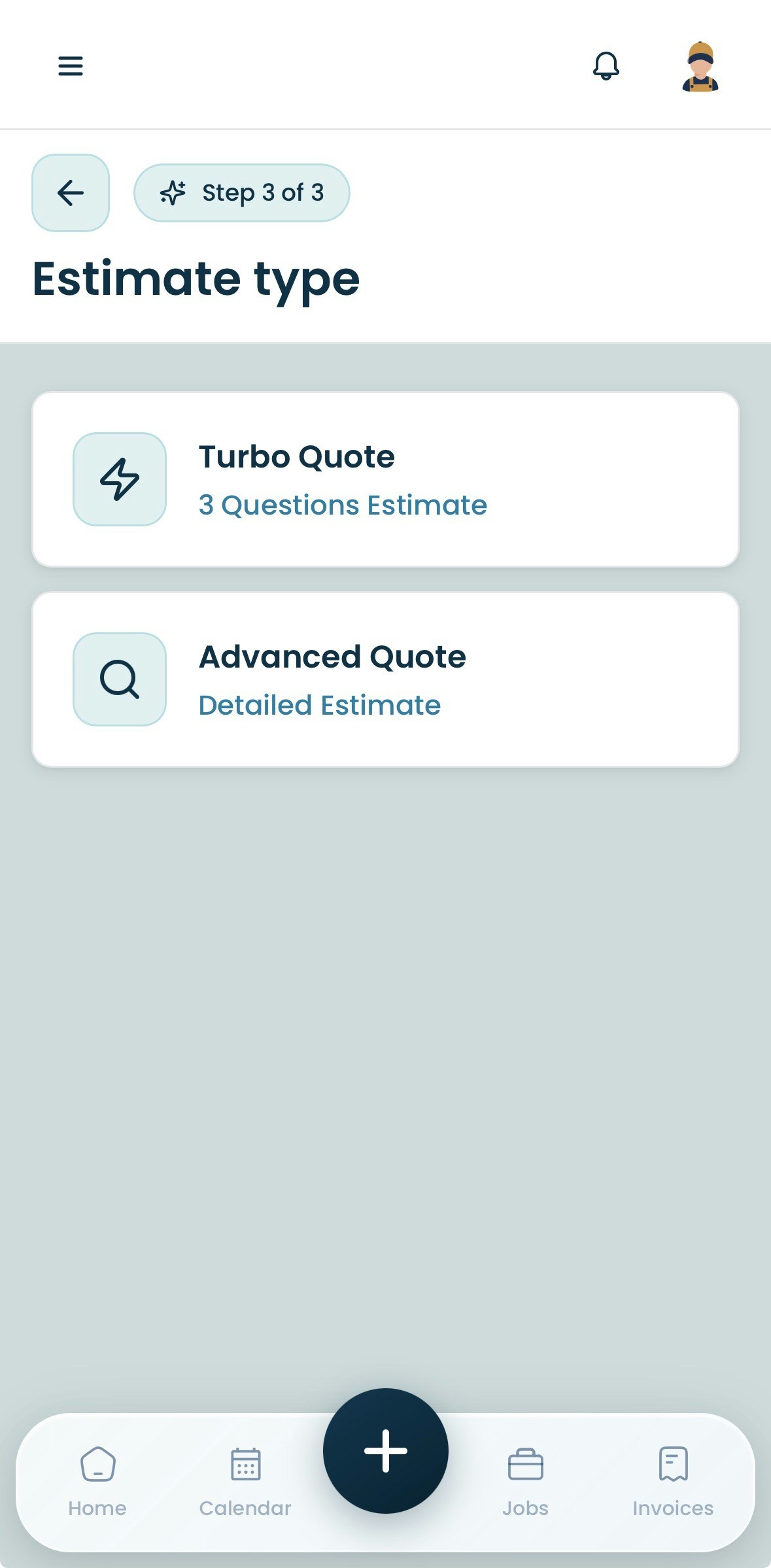
Step 2: Choose a Quote Type
Turbo Quote (Fast Estimate)
Turbo Quotes are designed for speed.Use Turbo Quotes when:- You want instant pricing
- Minimal inputs are needed
- You are quoting residential jobs
- Accuracy is “good enough” without manual review
- Property square footage
- Service type
- Inside / Outside selection
- Basic add-ons (screens, tracks, etc.)
Advanced Quote (Detailed Pricing)
Advanced Quotes are designed for accuracy and control.Use Advanced Quotes when:- Job conditions vary
- Commercial or complex properties are involved
- You want full pricing transparency
- Manual overrides may be required
- Window count and types
- Screens (normal / solar)
- Elevation or access difficulty
- Hard water stains
- Post-construction or move-in cleaning
- Last professional cleaning
- Recently painted or pressure washed
Step 3: Enter Customer & Property Details
Every quote in Estizee is tied to a customer and property.You can:
- Select an existing customer
- Create a new customer
- Enter property address and details
Step 4: Review the Quote
Before sending the quote, review: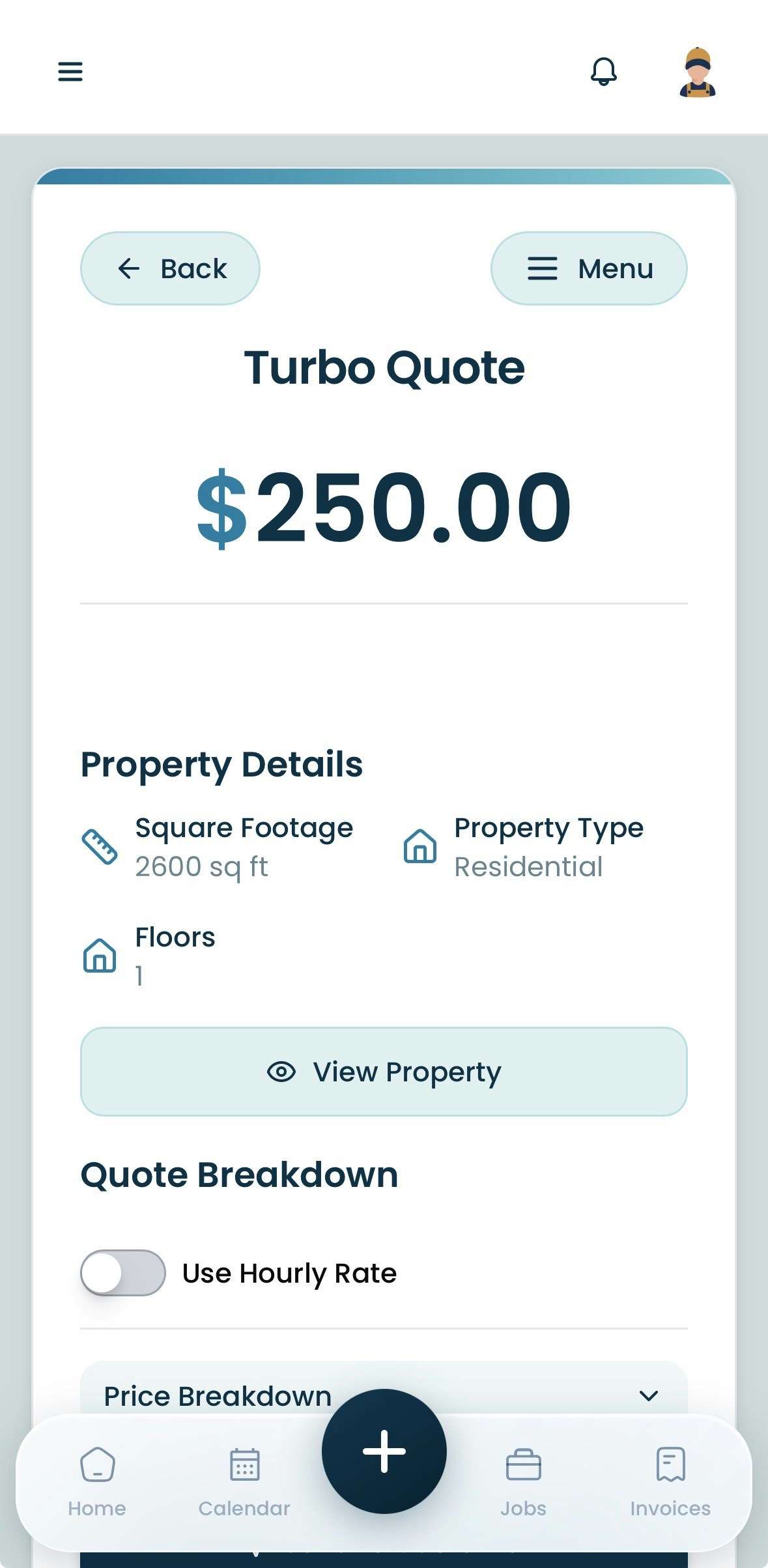
- Total price
- Applied surcharges
- Included services
- Job description (auto-generated)
- Internal notes (optional)
- Adjust pricing (if allowed)
- Switch to hourly override mode
- Add internal comments
Step 5: Share the Quote
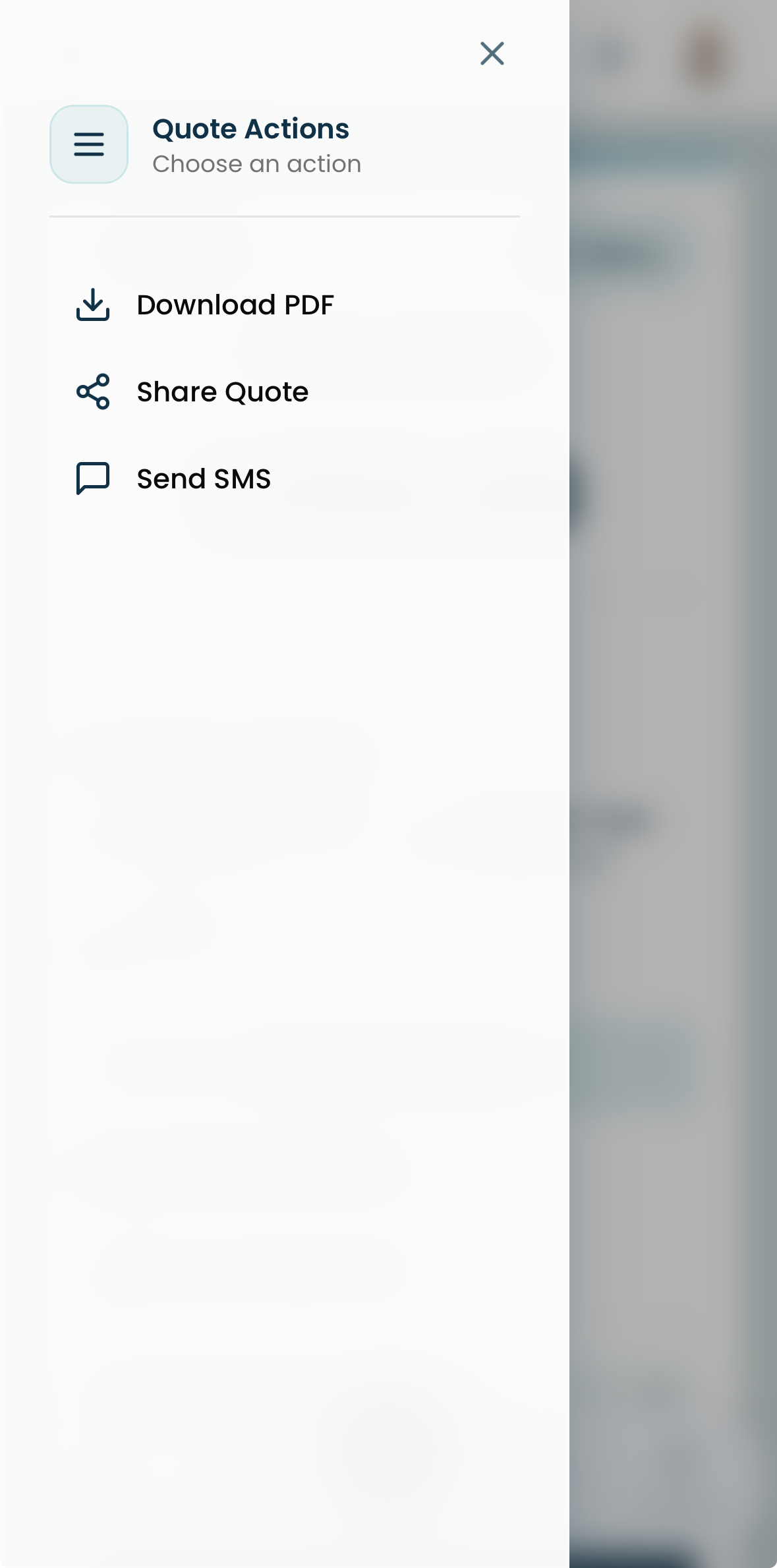
Once ready, share the quote with the customer:
- SMS
- Clear pricing
- Service breakdown
-
Approval instructions
What Happens Next?
Once approved:- The quote can be scheduled as a job
- The approved data will later generate the invoice
- Automated reminders can be triggered
- The customer record is updated
Best Practices
- Use Turbo Quotes for speed and volume
- Use Advanced Quotes for accuracy and complex jobs
- Always review the auto-generated job description
- Avoid scheduling before approval
- Let Estizee’s pricing rules do the work
Common Mistakes to Avoid
- Scheduling a job before quote approval
- Manually editing prices without documentation
- Using Turbo Quotes for complex commercial jobs
- Skipping surcharge review
Next Steps
After creating your first quote, continue with:- Quote Approval & Customer Flow
- Scheduling a Job
- Understanding Quote Statuses