
Benefits
- Real-time Updates: Changes in Estizee reflect automatically in Apple Calendar.
- Team Coordination: Team members can view assigned jobs on their Apple devices.
- Conflict Prevention: Maintain a single source of truth for schedules and avoid double-booking.
Setup Process
Click on the upside down arrow near the month and year on the calendar.
Click on the upside down arrow near the month and year on the calendar.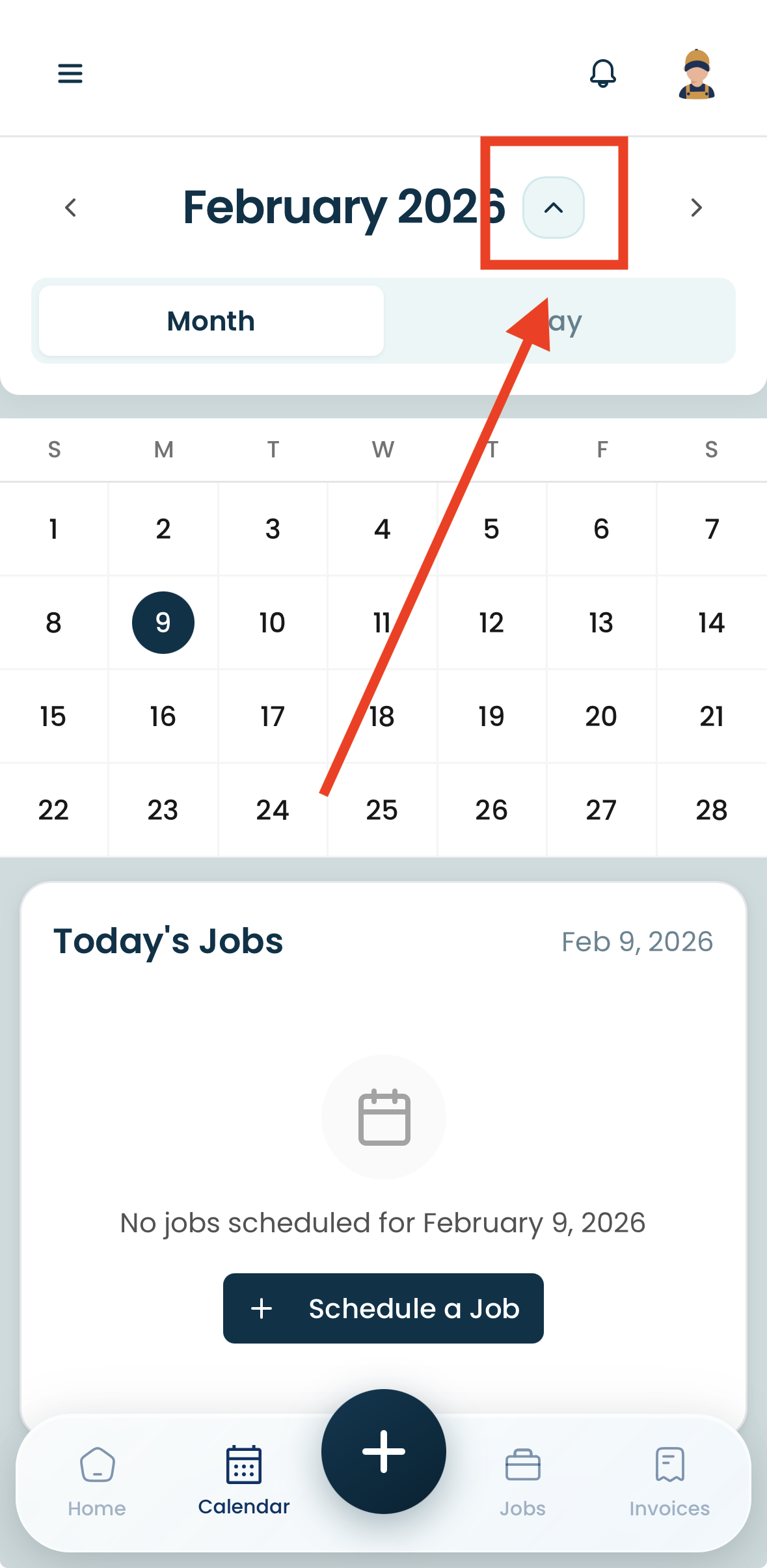
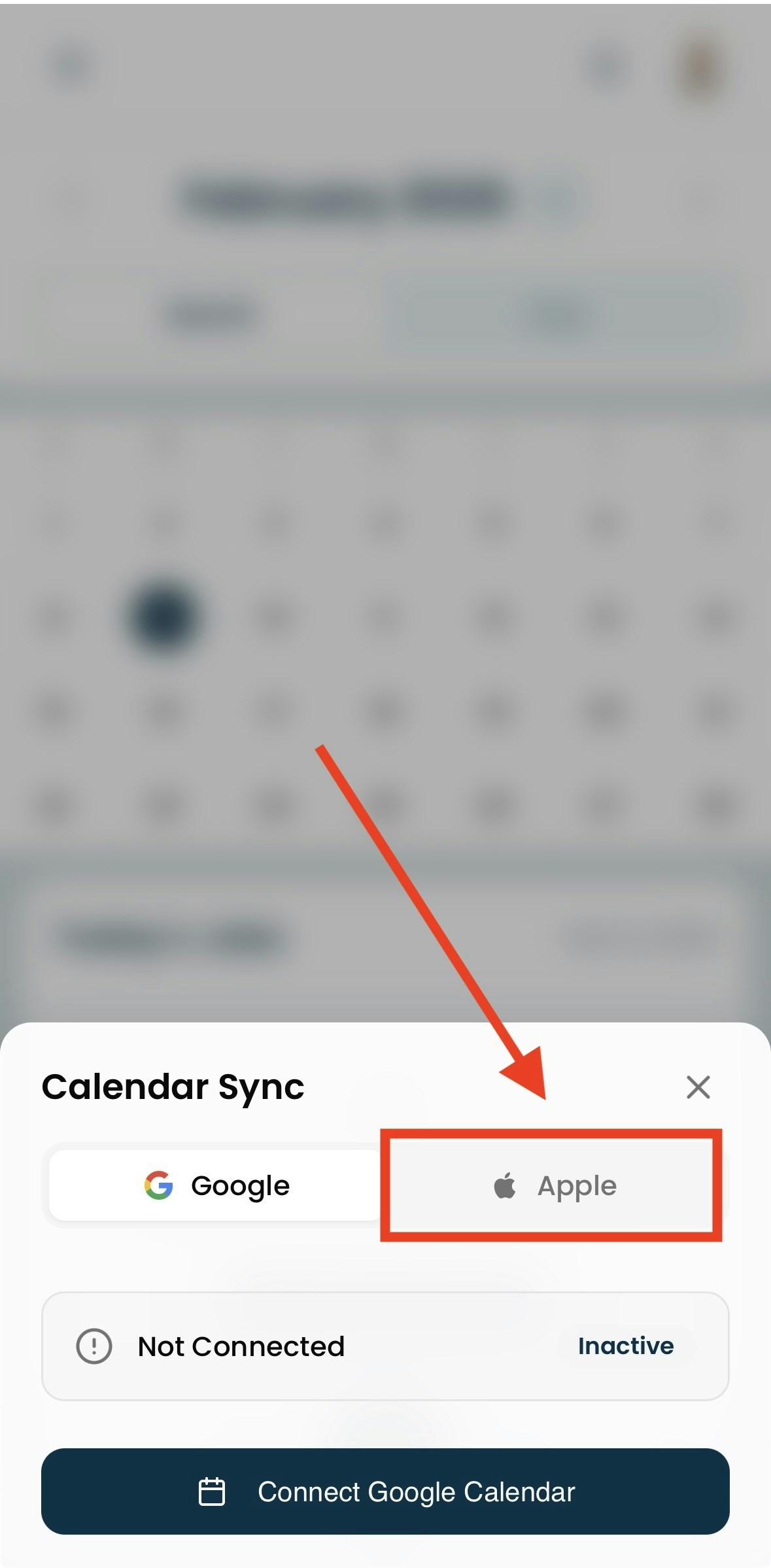
Grant permissions to allow Estizee to access your calendar.
Grant permissions to allow Estizee to access your calendar.
Sync Behavior
- Two-way Sync: Jobs created, updated, or deleted in Estizee automatically reflect in Apple Calendar.
- Notifications: Only scheduling information is synced; job details, pricing, or customer info are not transferred.
- Multiple Calendars: You can sync different Apple Calendars for different teams or locations.
Best Practices
- Periodically review calendar permissions to maintain sync functionality.
- Avoid manual edits in Apple Calendar for Estizee jobs to prevent discrepancies.
- Use calendar colors or labels to distinguish teams or job types.
- Monitor sync logs in Estizee for errors or conflicts.