> ## Documentation Index
> Fetch the complete documentation index at: https://docs.estizee.app/llms.txt
> Use this file to discover all available pages before exploring further.
# Creating & Editing Jobs
> The Creating & Editing Jobs section explains how to schedule, manage, and modify jobs within Estizee.
Proper job management ensures accurate scheduling, team assignment, and service delivery.
All changes apply to **new and updated jobs**.
## **Manually Creating a Job**
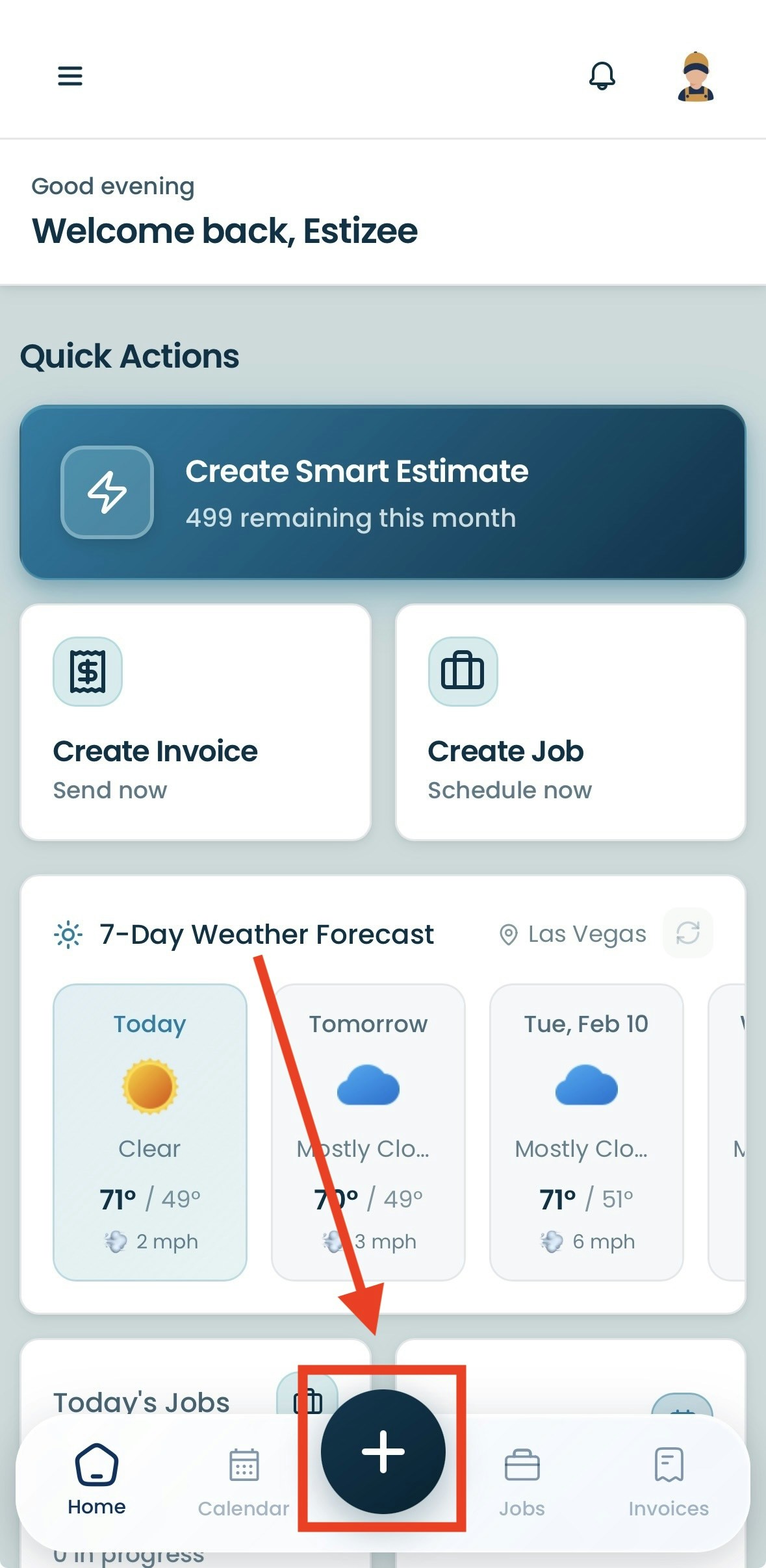
Locate the big + button on the bottom navigation bar.
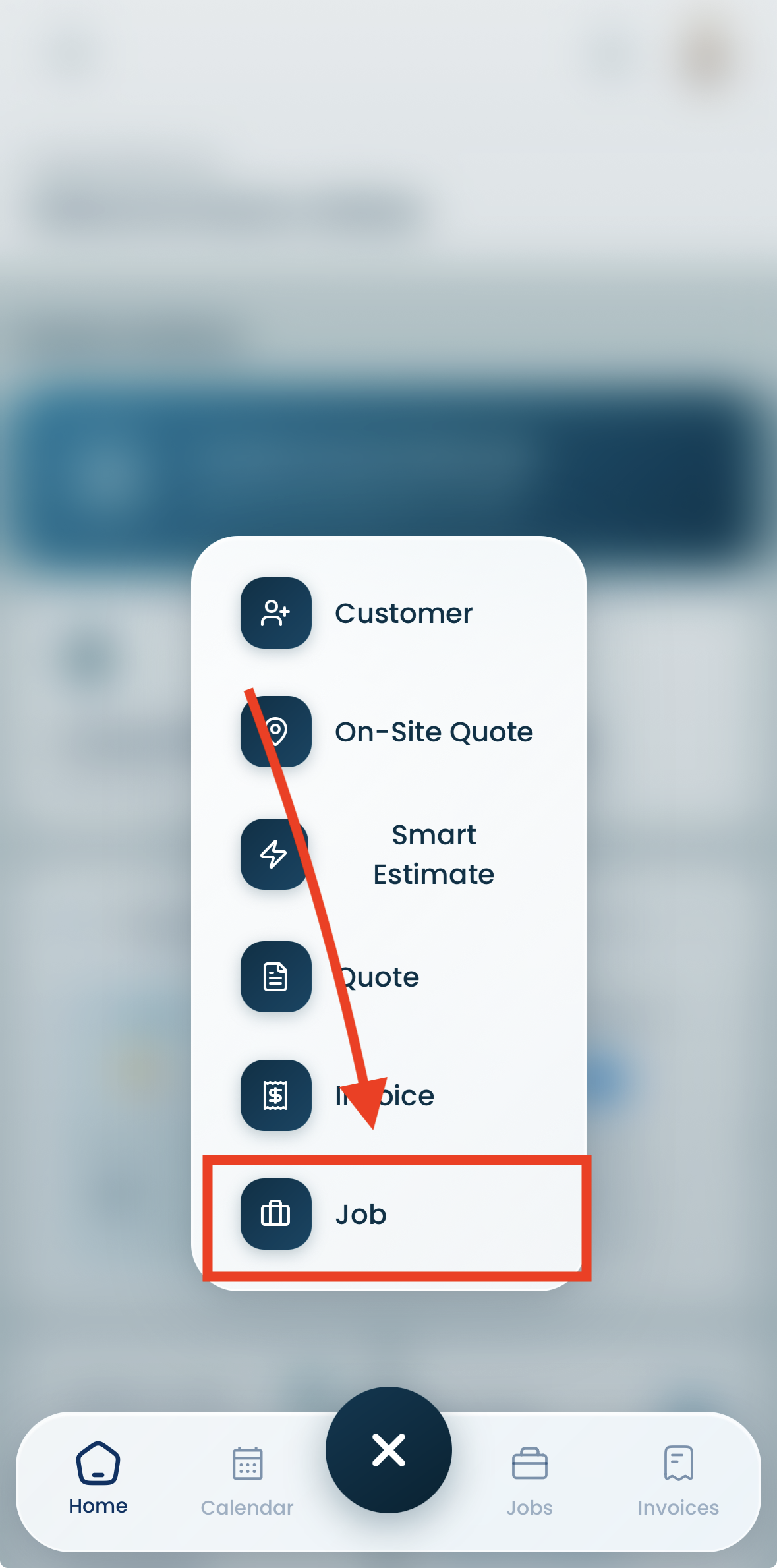
 Select "Create Job".
 Enter customer details, service type, and property information.
Assign the job to a team member or crew.
Set the scheduled date, start time, and estimated duration.
Review pricing and apply any relevant surcharges or add-ons.
Save the job and it will add it to the calendar and into the jobs page.
## **Editing a Job**
Locate the job in the Calendar or Jobs module.
Click on the preferred accordion to edit in.
Enter customer details, service type, and property information.
Assign the job to a team member or crew.
Set the scheduled date, start time, and estimated duration.
Review pricing and apply any relevant surcharges or add-ons.
Save the job and it will add it to the calendar and into the jobs page.
## **Editing a Job**
Locate the job in the Calendar or Jobs module.
Click on the preferred accordion to edit in.
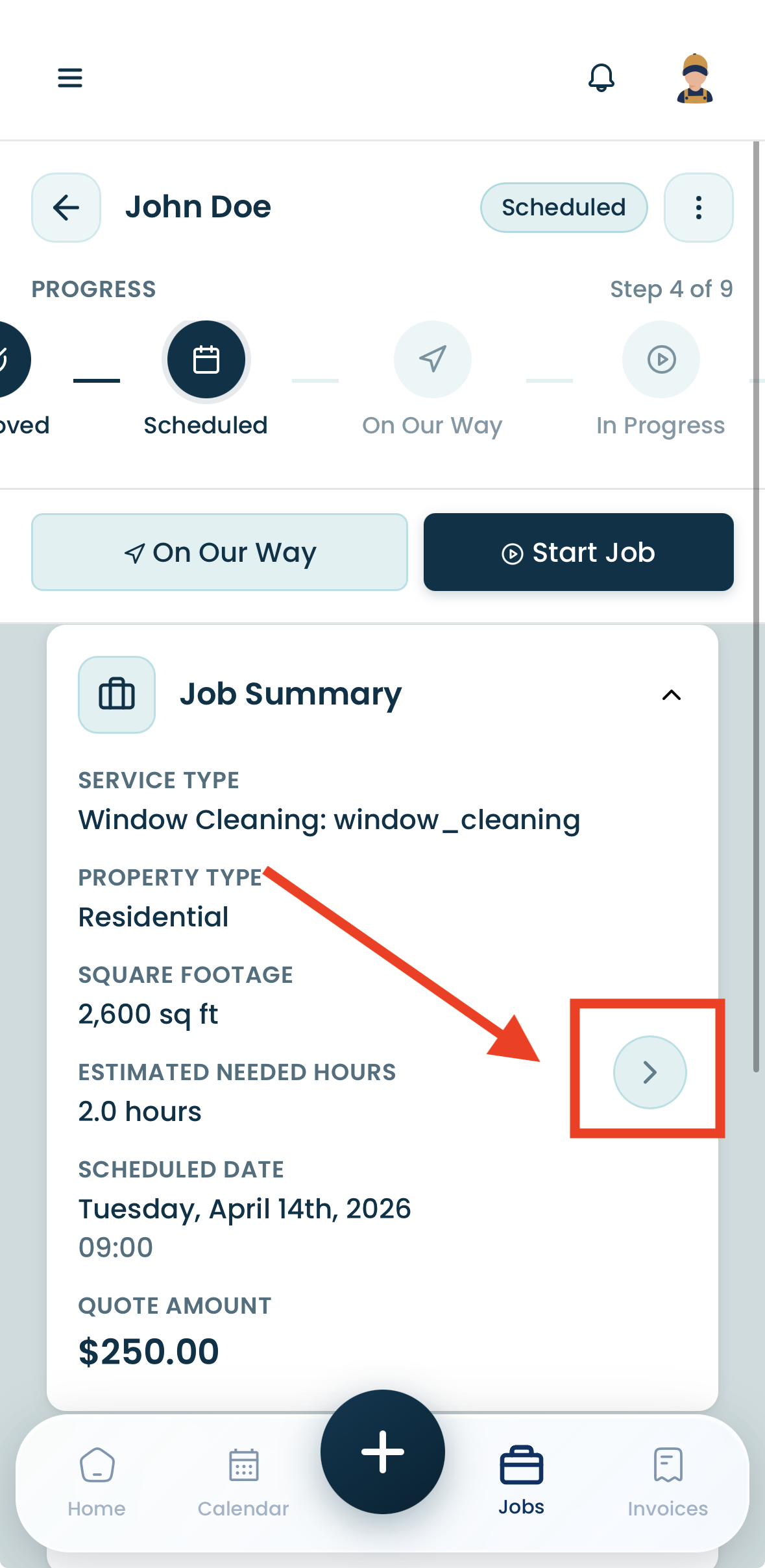 Update any necessary details, such as customer information, assigned team member, or scheduled time.
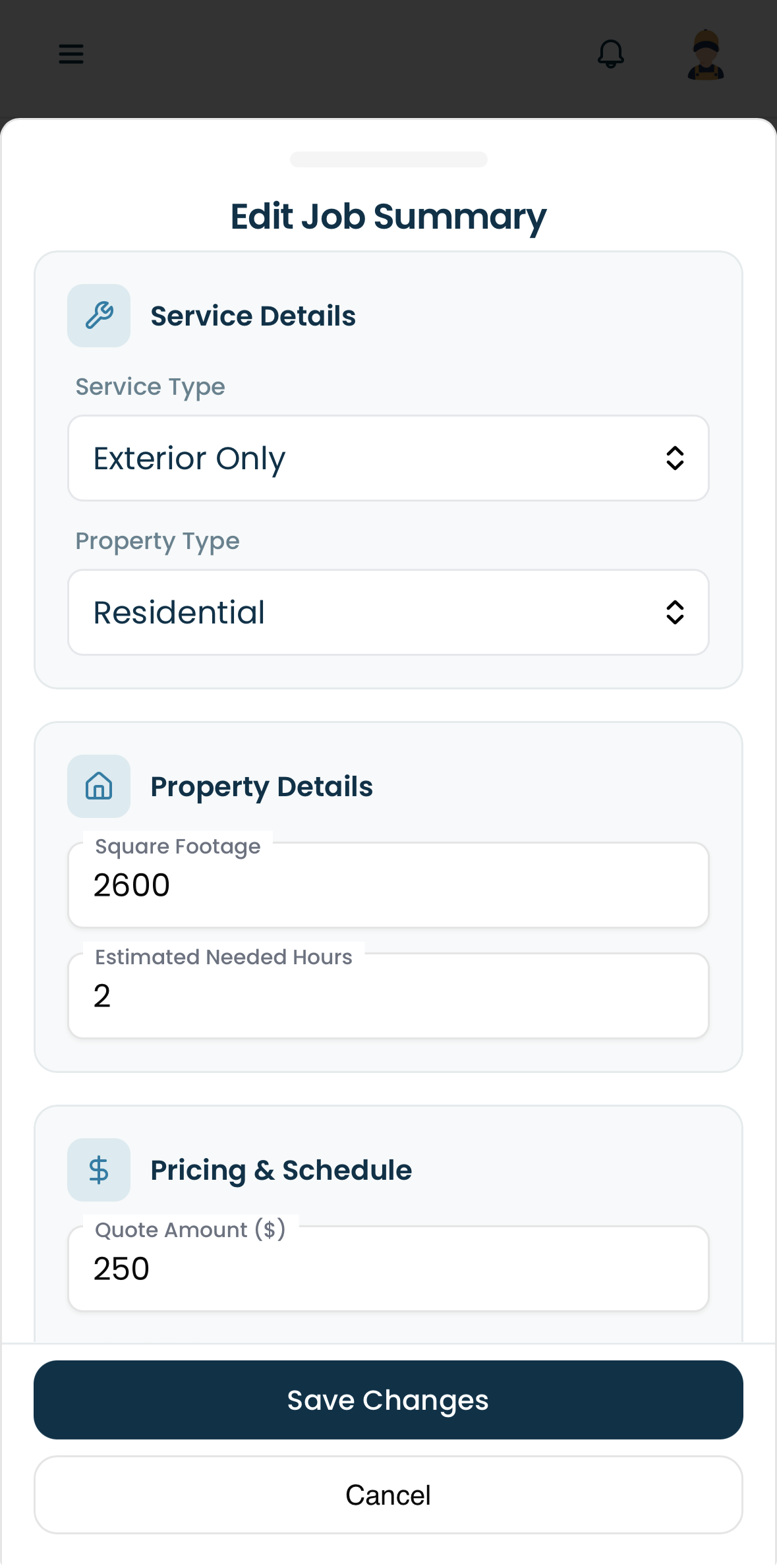 Adjust pricing, add-ons, or special instructions if required.
Save changes to update the job and notify relevant team members.
## **Best Practices**
* Double-check customer contact information before scheduling.
* Assign jobs according to team availability to prevent conflicts.
* Include notes for special conditions or customer preferences.
* Update jobs promptly if changes occur to keep schedules accurate.
Proper creation and editing of jobs ensures efficient operations, accurate scheduling, and clear communication with both team members and customers in Estizee.
Adjust pricing, add-ons, or special instructions if required.
Save changes to update the job and notify relevant team members.
## **Best Practices**
* Double-check customer contact information before scheduling.
* Assign jobs according to team availability to prevent conflicts.
* Include notes for special conditions or customer preferences.
* Update jobs promptly if changes occur to keep schedules accurate.
Proper creation and editing of jobs ensures efficient operations, accurate scheduling, and clear communication with both team members and customers in Estizee.